 Chiho AI
Telegram Message Templates: Eight Examples for Sales and Support
Reusable Telegram templates work best when each one has a specific trigger, a few facts to check, and one clear next step. Start with messages your customers already expect: requested information, an agreed follow-up, a support update, or a confirmed handover. Review the latest conversation before choosing the copy.
This guide provides eight editable examples and a small review checklist for sales and support teams. All names, situations, and commitments below are fictional. They are writing examples, not customer results or claims about reply rates.
Decide what belongs in a template
Save the repeatable structure: why you are writing, what you know, and what the recipient can do next. Supply the facts separately for each conversation. A template should not invent a previous meeting, an urgent deadline, or a promise that someone else has not accepted.
For each template, keep a short usage note alongside your team's working copy:
- Trigger: the event that makes this message relevant.
- Required facts: the details the sender must verify.
- Stop condition: a reply, cancellation, refusal, or changed situation that makes it inappropriate.
- Next action: what the sender will record or do after the message.
These are suggested editorial fields, not a claim that Chiho stores a formal template approval or version history. The Telegram follow-up guide explains how message preparation relates to priorities and follow-up tasks.
Eight Telegram message templates with use conditions
The braces below are manual editing prompts, not supported automatic merge fields. Replace every brace and verify the resulting sentence before saving or sending. Use a plain greeting if you cannot confirm the person's preferred name.
1. Send information the customer requested
Use when: the customer asked for a specific document or answer. Verify the request and the link's access permissions.
Hi {name}, here is the {document} you asked for: {link}. The section on {topic} covers your question about {requirement}. Is there anything there you would like me to clarify?
Do not use when: the document has changed, the link exposes another customer's information, or there is no actual request. A saved contact is not evidence that someone expects promotional messages.
2. Recap an agreed next step after a call
Use when: a call ended with a concrete agreement. Check the notes rather than relying on a generic demo script.
Thanks for the conversation, {name}. We agreed that I would send {item} by {date}, and you would review {question}. Here is {item or status}. Does that still match your understanding?
Do not use when: the proposed next step was never agreed. Change “we agreed” to an accurate description of your proposal.
3. Follow up at an agreed review time
Use when: the customer asked you to return on a particular date and has not already answered.
Hi {name}, you suggested revisiting {topic} around {date}. Is it useful to continue now, or would you prefer to leave it for later?
Do not use when: there is a newer reply, an unresolved complaint, or a request to stop. The example supplies no universal follow-up interval; use the conversation's agreement.
4. Confirm a meeting without creating a new commitment
Use when: the appointment exists and both sides have accepted it.
Hi {name}, confirming our conversation on {date} at {time and timezone}. We will cover {topic}. Here is the joining link: {link}. Please let me know if the time no longer works.
Do not use when: the time is still a proposal. Include the timezone, and check that the link opens the intended meeting rather than an old room or another customer's session.
5. Acknowledge a support issue with a realistic next update
Use when: your team has received an issue and a person can own the next update.
Hi {name}, I have your report about {issue}. I am checking {specific next step}. I will update you by {date, time and timezone}, even if the investigation is still open.
Do not use when: nobody can meet that update time. An acknowledgment is not a resolution. Avoid saying an issue is fixed until there is evidence for that claim.
6. Ask for one missing detail
Use when: one piece of information is needed to continue, and the customer has not already supplied it.
To check {issue}, could you share {specific non-sensitive detail}? That will help us distinguish {possibility A} from {possibility B}.
Do not use when: the answer is already in the chat. Do not request passwords, login codes, or unnecessary personal information. If diagnostic material could contain private data, explain what to remove before sharing.
7. Introduce a confirmed teammate handover
Use when: the teammate has accepted responsibility and can access the necessary context.
Hi {name}, {teammate} will take the next step on {topic}. I have shared {brief context} with them. The next update is due {date, time and timezone}.
Do not use when: access or responsibility is only assumed. Record the internal handover before making this promise to the customer. The team conversation guide includes a worked handover process.
8. Respect a request to pause contact
Use when: the customer explicitly asked to pause or stop follow-up and an acknowledgment is appropriate in context.
Understood, {name}. I will stop following up about {topic}. If you want to revisit it, you can message us here.
Do not use when: you cannot actually stop the associated follow-up work. Review outstanding tasks and any sending rules that could contradict the message. Silence alone should not be described as an explicit request from the customer.
Put the library into Chiho
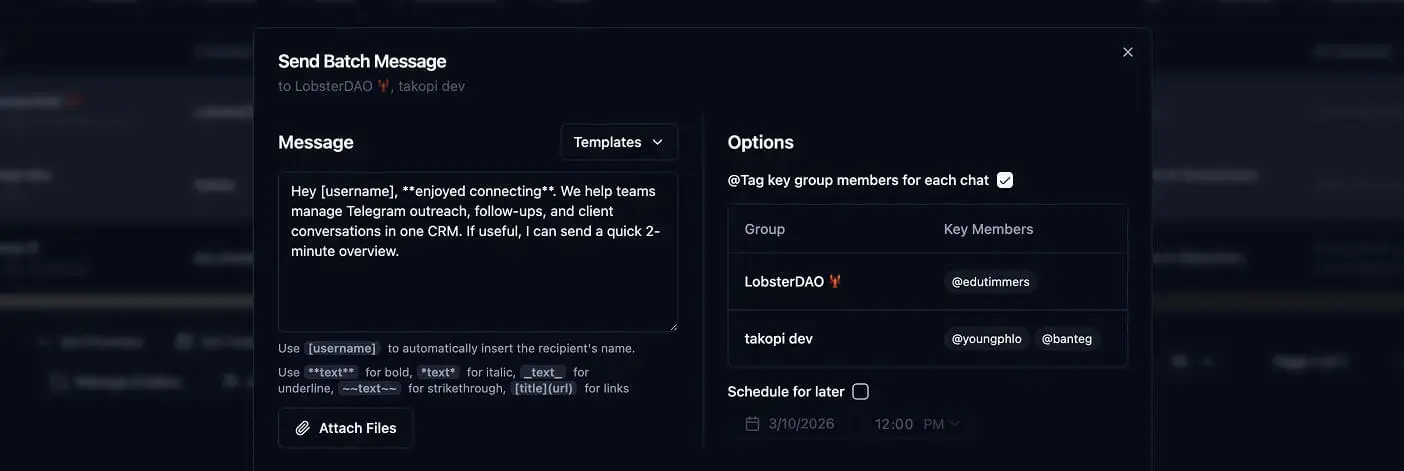
Chiho's Templates page provides a title and message text, with controls to save reusable copy. The current implementation supports simple formatting for bold, italic, underline, strikethrough, and links. Name a template for its purpose, such as “Support: investigation update,” so a sender can distinguish it from a resolution message.
The existing product image above illustrates the template and batch-message interface. It is not a test of these examples or evidence that a message was delivered. The product behavior described here was checked against Chiho's source on 13 September 2026; this update did not run a live send.
Use this preparation sequence:
- Choose one recurring message and write its usage note.
- Replace the manual prompts with verified facts for your intended use. Do not save customer-specific private details into a broadly reused message.
- Save the title and text in Templates. Confirm that your account has access to the feature; this guide makes no pricing or plan-entitlement promise.
- Read the latest chat before selecting a saved template for sending. Check the sending account and intended conversation.
- Review the actual text, links, recipient selection, and any schedule. If the facts differ between recipients, prepare them separately rather than assume arbitrary fields will be filled automatically.
- After sending, inspect the reported outcome and record the next action. A selected template, preview, or queued item does not establish delivery.
What does [username] mean?
Chiho exposes a [username] placeholder in its template editor, and its sending implementation replaces that token using available recipient or group-member information. That is different from the manual {date}, {document}, and other prompts in this article. Do not assume those prompts will be substituted.
For a group, check whom a personalized greeting addresses. A member chosen by the sending logic is not necessarily the customer decision-maker. A greeting without a name may be more appropriate when addressing a group. Confirm the available identity before using name-dependent copy.
Keep templates separate from permission to send
Saving wording does not establish that every recipient should receive it. Telegram's Spam FAQ asks users to contact people only when messages are expected, and explains that unwanted messages can lead to account restrictions. A template or batch tool does not remove that consideration.
If an agent helps, begin with a drafting task: “Using only these supplied facts, prepare a support update. Mark missing facts, and do not send.” Check your client's tool permissions before connecting it. In Chiho, single-message sends and some CRM changes can execute directly after client-side controls; not every write waits for approval. The outbox preview path requires approval for multiple resolved recipients or an ask-always connection setting. See the AI-agent connection guide and message approval guide for the separate execution workflow.
When Telegram's own quick replies may be enough
If your main need is reusable answers in private chats, consider Telegram Business quick replies. Telegram's official Business introduction describes preset messages with formatting, links, and media, and identifies their private-chat scope. Check the current options in your client before relying on them.
Chiho is the publisher of this guide. Its templates may fit when you also need the surrounding CRM and recipient-selection workflow; that does not make a separate CRM necessary for every saved reply. The Telegram CRM guide explains the broader decision.
Test one template before expanding the library
Use fictional details in a draft and ask a teammate to review three cases: a normal eligible conversation, one with missing facts, and one where a recent reply cancels the need to send. No message needs to leave the draft for this editorial check.
A template passes this check only if the reviewer can identify its trigger, spot missing facts, and reject the canceled case. Check that there are no leftover braces, unsupported promises, wrong links, or ambiguous times. This is a suggested acceptance checklist, not a measured improvement claim.
Keep one owner and a review date in your team's working document. Revise copy when products, links, or commitments change. Retire duplicates rather than letting senders choose between nearly identical versions with different facts.
Open Chiho Templates to prepare one recurring message using this checklist. Start with an expected customer reply, confirm the facts, and review the intended conversation before sending.