 Chiho AI
Telegram Message Approvals: What Reviewers Need Before Sending
Before approving a Telegram message, check the sending account, exact recipients, complete message, timing, and evidence behind any promise. Approval should cover one concrete action. A general “looks good” attached to an earlier draft leaves too much unresolved.
Chiho has a team message queue and an agent outbox preview workflow. They have different permission checks. This guide explains the agent preview in detail and gives a review checklist teams can use for either path.
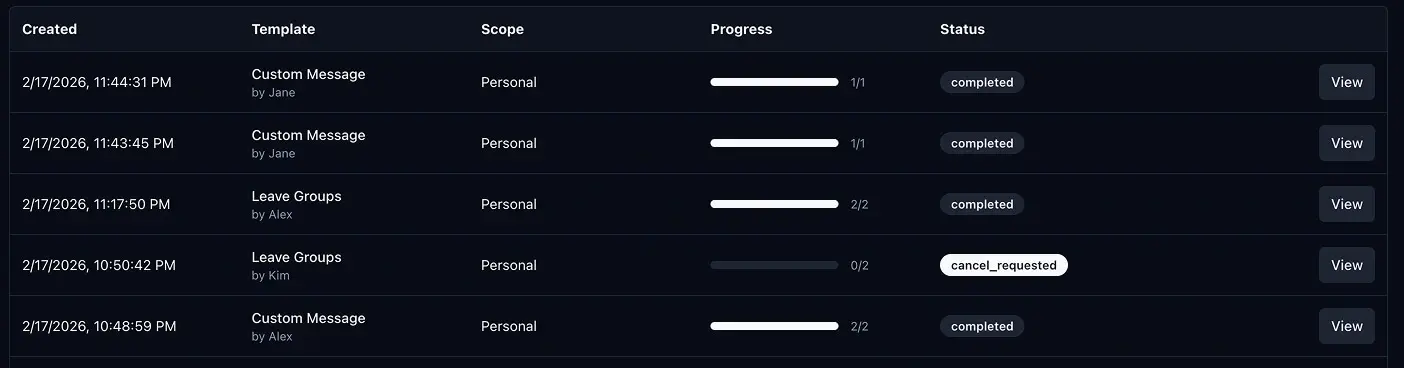
Verification note — 14 September 2026: Product statements below were checked against Chiho's current source and documentation. No customer messages were read and no previews, approvals, or sends were performed for this article. The existing header image illustrates an action-history view; it is not a screenshot of today's review exercise. The examples are fictional.
Identify the sending path before reviewing
In the team messaging flow, messages that require review can enter a queue for an administrator. That does not mean every action performed through an AI connection enters the same queue.
For the agent outbox, outbox_preview resolves recipients and stores a proposed action without sending it. The returned result includes a preview ID, recipient count and list, skipped recipients, message preview, expiry, and whether approval is required. More than one resolved recipient requires approval; a single recipient also requires it when the connection uses ask_always.
Other permitted writes can execute directly after applicable client controls and Chiho's checks. In particular, do not assume message_send_draft merely saves text: it sends. Member invitations and group exits have their own preview-and-approval paths. Read the AI-agent connection guide before enabling tools.
An approval record is also not proof that a separate manager reviewed the action. The agent preview is tied to its user, token, personal or team context, and scope. The authenticated web approval endpoint checks the preview owner and team membership; it is not a general mechanism for any team administrator to approve another user's agent preview. If your process requires a second person, arrange that review explicitly and confirm the chosen product flow supports it.
Build a review packet with six checks
1. Sending identity and context
Write down which connected Telegram account will send, whether the operation is personal or team-scoped, and which customer conversation it belongs to. A familiar display name alone is insufficient when accounts or chats have similar names. Resolve ambiguity before preparing the action.
Team visibility is an access boundary, not permission to contact every visible person. The team handover guide explains how to carry the customer's context into the next action.
2. Resolved recipients and exclusions
Review the actual resolved list rather than only the requested folder, label, or count. Check each recipient against the intended audience. Inspect skipped recipients and the reason for each exclusion: two requested chats and one resolved chat are not a complete two-chat plan.
Do not expand the audience while approving the copy. If the list is wrong or incomplete, revise the request and produce a new preview. Telegram's Spam FAQ advises contacting people who expect your messages. Internal approval does not make unwanted outreach acceptable or guarantee that Telegram will allow it.
3. Full message and factual support
Read the complete proposed message, not just its shortened preview. Check the greeting, links, names, attachments if relevant to the chosen flow, and any remaining template placeholders. Verify prices, delivery dates, refunds, and other commitments against an authorized source.
Keep a small evidence note beside the draft: “Customer requested the revised proposal in the selected conversation; delivery date confirmed by the responsible teammate.” If the evidence is missing, say so and remove or qualify the promise. The message templates guide provides starting points; a template is not evidence that its claims apply to this customer.
4. Send time and expiry
State “send now” or an exact scheduled date, time, and timezone. A reviewer in Singapore and a sender elsewhere should not have to guess what “tomorrow morning” means. Check the actual schedule supplied to the tool, not merely the wording in the message.
The preview has an expiry. An expired preview needs a fresh preparation and review; approval does not keep it valid indefinitely. Scheduling remains subject to account capabilities and Telegram's current responses. Do not promise delivery at a particular time solely because a preview was created.
5. Preview identity and revision
Keep the preview ID with the review decision. Chiho also returns a payload hash as an identifier for the prepared inputs. The execution path uses the stored action associated with the preview rather than accepting replacement message text at send time.
If the message, recipient selection, account, or schedule changes, prepare a new preview and review that version. Do not treat a hash as a human-readable check of the content, or an approval note as an instruction that edits the stored message. Read what will actually execute.
6. Decision and permitted next step
Record one of three decisions: approve this exact action, revise specified fields, or reject the proposed send. Identify who made the decision and what may happen next. This is a recommended review record, not a claim that Chiho enforces your organization's job titles or second-reviewer policy.
Approval and execution are separate steps in the agent workflow. A saved approval is not a sent message. Conversely, a preview that does not require approval can be eligible for execution without a further server approval step. Client permissions and explicit task boundaries still matter.
Three worked review decisions
These fictional examples demonstrate decisions only. They are not performed actions or customer results.
Approve: two expected proposal updates
The request names two customer chats that each asked for a revised proposal. The preview resolves exactly those chats, with no skipped recipients. The complete text contains the correct proposal link and no unverified delivery promise. The reviewer confirms the sending account and an explicit send-now instruction.
The decision can read: “Approve preview P-101 for the two listed chats, with the reviewed proposal text, from the selected account, for immediate sending.” P-101 is an illustrative identifier. The operator must use the real preview ID and inspect the execution outcome afterward.
Revise: a deadline changed after preview
A preview says “We will deliver Friday,” but the responsible teammate has only confirmed that an estimate will be available Friday. The reviewer changes the wording to “We will share a delivery estimate Friday.”
That correction requires a new preview. An approval note saying “use the new wording” does not replace the stored text. Review the revised message and recipient list together; do not execute the old preview while waiting for a correction.
Reject: the audience is unsupported
A proposed batch targets people found by username search, with no evidence they expect the outreach. Even if the copy is polite and the preview resolves every recipient, the reviewer rejects the proposed send.
Record the reason and do not call execution for that preview. A rejection in a separate document is a process decision, not proof that the underlying preview has been canceled in the product. Use the available cancellation controls where appropriate and verify the resulting state.
After execution, reconcile the outcome
Inspect the returned run or batch identifier and per-recipient results. Distinguish queued, scheduled, sent, skipped, and failed outcomes where the operation reports them. “Completed” at the run level is not evidence that every customer received or read a message.
For an uncertain or partial outcome, inspect the existing run before retrying. The outbox implementation supports idempotent result retrieval for an existing run, but starting a fresh preview or changing retry identity is not a substitute for checking which recipients already succeeded. Avoid sending a duplicate to everyone because one recipient failed.
If the action is still running, record that state. If it failed, preserve the reported reason and decide whether the original message and audience remain appropriate before preparing another action. Runtime restrictions and flood-wait responses take precedence over a static sending plan.
Try the checklist without sending
Start with a fictional draft in a document and fill in the six checks. Mark unknown account identity, missing evidence, ambiguous timing, or unresolved recipients as reasons to revise. This document-only exercise does not require a write tool.
When you are ready to inspect a real preview, explicitly authorize preview creation for selected conversations: it stores state even though it does not send. Ask the agent to show the returned preview identity, resolved and skipped recipients, full proposed text, timing, and expiry, then stop before approval or execution. Confirm client tool controls support that boundary.
Connect a compatible AI client to Chiho to evaluate the preview workflow. If you are still choosing how to organize the wider customer process, start with the Telegram CRM guide.