 Chiho AI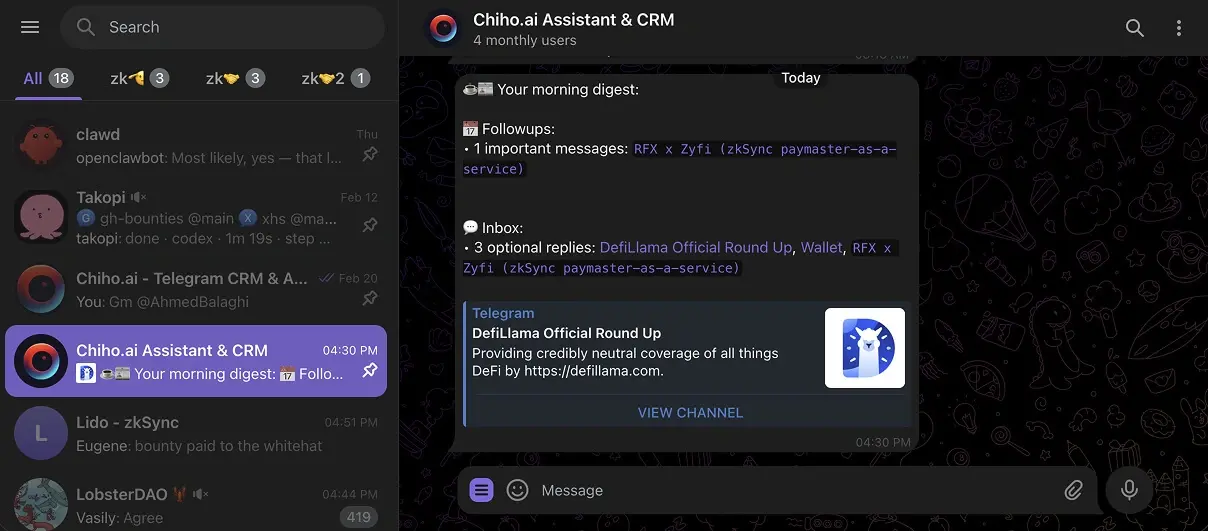
From a busy inbox to a useful plan
A customer asks for a proposal, a partner requests an introduction, and a group discusses a launch. The work is spread across messages. Chiho helps you connect each conversation to a summary, company, tags, and follow-up tasks so you can see what needs attention.
The assistant works with the Telegram account you connect and the personal or team context you authorize. It is useful when you want to review existing conversations and act on commitments, rather than copy messages into a separate AI chat one by one.
For a team setup, follow the shared Telegram inbox guide: choose which conversations to share, define who handles each next action, and test a handover with two teammates.
Three workflows to try
Prepare for a customer call
Open the relevant chat and review its recent messages and summary. Ask for the latest decision, open questions, and promised next step. Check the source conversation before relying on a generated summary. Keep a note of details the next teammate needs.
Example request: “Summarize this customer conversation. Separate confirmed decisions from open questions and list the messages I should check before our call.”
Build a follow-up queue
Review tasks due today, then look for conversations with an unanswered question or an explicit commitment. Ask for suggested tasks first; supply an owner or due date where the conversation is unclear. A CRM task records the work. It does not by itself send a Telegram message.
Try the Telegram follow-up task skill, or read the priority-based follow-up guide.
Hand over a conversation
Give an authorized teammate the context needed to continue: the last decision, relevant company information, open tasks, and the next contact date. Verify who can access the shared context before the handover. Being a Chiho teammate and being a participant in the original Telegram chat are different access relationships.
See the customer handover guide for a worked example.
Use your preferred AI client
Chiho’s hosted Telegram MCP connects compatible clients such as Claude and Codex to Telegram and CRM tools. Connect Telegram in Chiho, add the MCP endpoint to the client, and complete the browser consent flow. You can inspect and revoke connected clients from Agent Access.
Connect Claude or Codex to Telegram. For a repeatable process, choose a Telegram workflow skill. The separate open-source local runtime is an option for people who want to operate their own worker and database.
Review what the assistant can change
Reading a thread, refreshing a summary, creating a task, and sending a reply have different effects. Give a concrete account, conversation, and action when you ask for a change. A prompt to “review” should specify whether you want suggestions or execution.
Chiho enforces account/team scope and tool safeguards. Member invitations and group exits require stored previews and approval; batch sends can require approval depending on the connection settings. Some other writes, including single-message sends and CRM changes, can execute after the AI client’s own tool controls. Check those controls before granting access.
Common questions
Does it work with my existing Telegram conversations?
Chiho connects a Telegram account and exposes the conversations available within the authorized context. Reading a Telegram chat and having that chat imported into the CRM are separate steps. If tags, tasks, or summaries are missing for a readable chat, check its sync/import state.
Does creating a task automatically message someone?
No. A task records a next action. Message sending and recurring automation are separate workflows with their own permissions and execution behavior.
Can I trust every AI summary?
Treat summaries and suggested actions as drafts to check against the original conversation. Confirm dates, names, commitments, and recipients, especially before an external action.
Where does my data go?
Your connected Telegram service, Chiho’s configured infrastructure, and the AI providers or clients involved in a request may process relevant data. Read the privacy policy and assistant terms. For a company-specific deployment, review the enterprise deployment options.