 Chiho AI
How to Connect an AI Agent to Telegram with Chiho
Connect an AI agent to Telegram by connecting your Telegram account in Chiho, adding https://api.chiho.ai/mcp to a compatible MCP client, and completing browser OAuth. Then verify the account and scope with auth_status before asking the agent to read one selected conversation.
This guide covers Chiho's hosted connection and the separate local-runtime option. MCP supplies tools; a skill supplies workflow instructions. Installing a skill does not authorize access to your Telegram account.
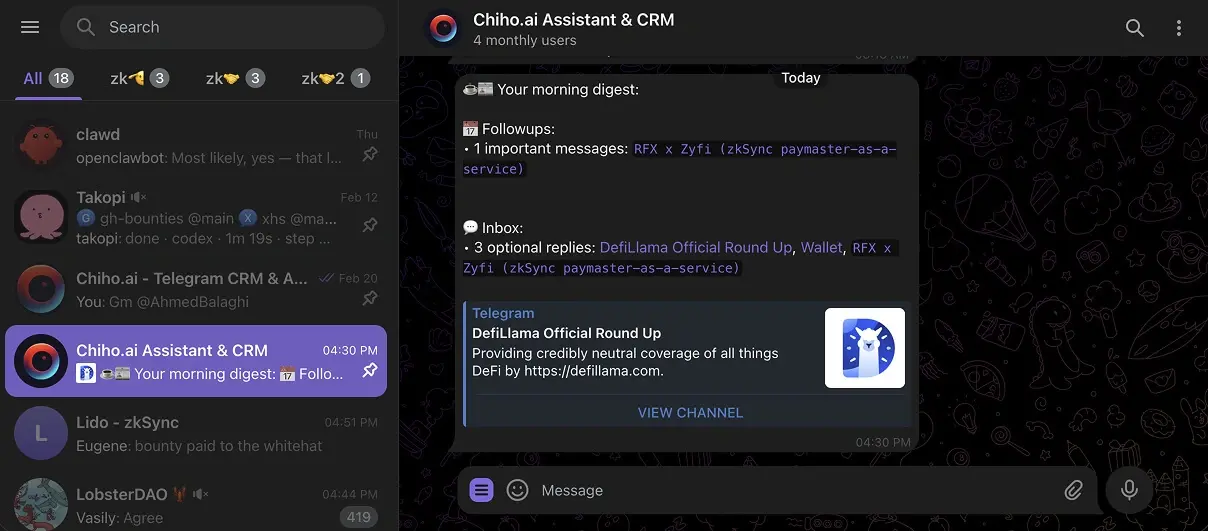
Verification note — 8 September 2026: These instructions were checked against Chiho's current implementation, local Codex command help, and the linked client documentation. This update did not run a fresh authenticated client setup or read customer conversations. The exercise below is an acceptance checklist, not a report of observed account results. The existing header image illustrates Chiho's inbox, not an OAuth setup test.
Choose the connection you intend to operate
Chiho Cloud is the hosted path for Telegram and CRM work. Your AI client connects to Chiho's remote MCP service and asks you to sign in and consent in the browser. Review the Telegram MCP setup reference alongside this guide.
tgchats local is the separate open-source local runtime in the Telegram agent repository. Follow that repository's current installation and operation instructions if you want to maintain the local environment. Its setup and storage responsibilities differ from the hosted connection; a successful cloud login does not validate a local runtime.
If you are still deciding what kind of system you need, the Telegram CRM guide explains the relationship workflow, while CRM versus bots versus shared inboxes compares the approaches.
Before connecting: account, client, and conversation
Have a Chiho account with Telegram connected, a client that supports remote HTTP MCP and browser OAuth, and a clear choice of personal or team context. Select one conversation you are authorized to inspect for the first exercise. Avoid beginning with an entire inbox or a request to send messages.
Review your AI client's data handling and your organization's rules before allowing it to retrieve conversation content. Chiho keeps the hosted Telegram session inside its service, but information returned by tools is provided to the connected AI client. See Chiho's privacy policy for its published handling terms.
Use the production resource exactly as shown above. The staging resource is for isolated pre-production testing; production and staging grants are not interchangeable.
Connect the hosted MCP service
Codex
Run these commands in a terminal where Codex is installed:
codex mcp add chiho --url https://api.chiho.ai/mcp
codex mcp login chiho
The second command starts browser authorization. After consent, return to the Codex surface using that saved configuration and request auth_status. If the server does not appear, check whether that surface uses the same configuration as your terminal. See the Chiho client setup reference for the hosted endpoint and configuration context.
Claude Code
Add the remote HTTP server:
claude mcp add --scope user --transport http chiho https://api.chiho.ai/mcp
In Claude Code, open /mcp and complete authentication for Chiho. Then request auth_status. Anthropic's MCP documentation explains remote HTTP configuration and authentication. Client controls and available connector features can vary; check the documentation for the version you use.
Other compatible clients
Use the client's custom remote MCP connection flow with the same production URL. For Chiho's public-client OAuth flow, leave optional client ID and secret fields empty unless support has supplied managed-deployment credentials. Complete browser consent rather than copying a bearer token into a configuration file.
Chiho is available in the ChatGPT plugin marketplace. Install the plugin in ChatGPT or Codex and complete browser authorization in that client. A local Codex configuration does not install the plugin in ChatGPT web.
A client that can reach the server has not necessarily completed authorization. Do not treat a connected transport icon as proof that the intended Telegram account is available.
Read the consent screen as an access decision
Check the client identity, redirect host, Chiho account, personal or team scope, and complete permission set before consenting. Chiho's interactive grant includes supported read and write capabilities; starting with a read-only request does not turn the grant itself into a read-only grant.
Team grants restrict tools to team-visible accounts and conversations. Team message search requires a specific chat, and personal account-wide folder and logout operations are not exposed in the team context. An absent conversation can therefore reflect an access boundary rather than a broken connection.
Client tool prompts and Chiho's execution safeguards are separate controls. Review both before expanding beyond reads:
- Direct writes exist. Single-message sending, CRM tags, tasks, automation rules, folder operations, summary refreshes, and account logout can execute after applicable client controls and server checks. A tool named message_send_draft sends a message; do not infer that it only saves a draft.
- Outbox approval depends on the operation. Multi-recipient previews require approval. A single-recipient outbox preview also requires it when the connection uses the always-ask mode.
- Member invitations and group exits require stored previews and approval before execution.
- Previewing is not sending, but a preview can persist approval state. It is not an appropriate tool for a strictly read-only acceptance exercise.
A sentence such as “do not send” helps define the task but does not replace tool permissions. Likewise, installing a workflow skill does not change the grant. Review any skill that creates tasks or refreshes summaries as a workflow containing writes.
Run one read-only acceptance exercise
Use this sample request after authorization. Replace the description with your selected, authorized conversation:
First call auth_status and confirm the connected account and personal or team context. Locate the conversation I selected and ask me to resolve any ambiguous match. Read its recent messages only. List open questions, explicit commitments, and unclear points, with message references for each. State the time range and any pagination limits. Do not send messages, create tasks, change CRM fields, refresh summaries, start syncs, or prepare write previews.
Check the result against the conversation yourself:
- Identity: The returned account and scope match the context you intended. Stop if they do not.
- Target: The selected conversation is correct. Similar titles need disambiguation, not a guessed recipient.
- Coverage: The agent states what it read. A page of dialogs or messages is not proof of complete history; continue pagination only if needed and authorized.
- Grounding: Each claimed commitment or open question has supporting messages. Missing information stays unknown rather than becoming a fabricated deadline or owner.
- Effects: The tool history contains only the intended reads. A useful written summary in the AI conversation does not require saving a CRM summary or creating a task.
For example, in a fictional exchange where a customer asks for a proposal and a teammate says “I will send it Friday,” a useful answer distinguishes the customer's question from the teammate's commitment. It should not claim the proposal was sent without a supporting message. This is an illustrative evaluation case, not customer evidence or a measured result.
Record your client/version, check date, account context without private identifiers, tools used, and pass/fail for the five checks. Do not put tokens or private messages into a shared test record. Only expand the workflow after this small exercise behaves as expected.
Troubleshoot the failed step
Authorization never completes: Recheck the exact remote URL, finish the browser consent flow, and confirm you are signing into the intended Chiho environment. A revoked connection needs fresh consent. Remove credentials and private content before sharing an error with support.
Authorization works but conversations are missing: Check Telegram's connection in Chiho, the selected account, and the grant's team boundaries. Compare like-for-like inventories: dialogs_list pages Telegram dialogs; crm_dialogs_list pages Chiho's persisted CRM inventory. A returned page length is not an account total, and neither list is a count of address-book contacts.
Only part of the history is summarized: Ask the agent to report the requested range, returned range, and continuation status. Do not let it describe a partial read as an inbox-wide audit.
Telegram asks the system to wait: Respect the returned wait/retry information. Chiho's durable sync can report waiting_for_telegram with a resume time. Repeatedly restarting work is not a way to remove Telegram's limits, and this guide makes no unlimited-throughput promise.
A tool is missing or a write is rejected: Check the authenticated tool list, scope, client controls, and any required preview/approval state. Do not broaden access just to make the error disappear. Return to the smallest action your workflow actually requires.
Revoke access and choose the next workflow
Open Connected AI clients in Chiho to inspect the client and scope. Revoke the connection when it is no longer needed; Chiho invalidates its access and refresh tokens, and reconnecting requires consent again. Removing the server from the AI client's configuration is a separate housekeeping step. Revocation cannot retract content already returned to that client.
For controlled unattended jobs, consult the advanced service-token guidance. Service tokens are not the normal interactive onboarding path and should not appear in screenshots, shared configuration, or support messages.
After the read-only exercise, choose one bounded workflow: identify commitments with the follow-up tasks skill, or organize a conversation using the lead qualification skill. Review the skill's writes before running it. The priority follow-up guide explains how tasks and customer messages serve different purposes.
Connect Telegram in Chiho, complete browser authorization, and verify one selected conversation before granting an agent a broader job.